User Guide for Vendors
Information Required Before Initiating Data Upload
| Required Metadata | Data Type | Description | Example |
|---|---|---|---|
| Vendor Support email address | Text | Email address where Equinor can address technical questions to vendor | support@vendor.com |
| Data loader email address | Text | A person in vendor organisation who will deliver the data to Equinor. Otherwise known as "Affiliate user" | A_Data_Loader@vendor.com |
| Data loader mobile telephone number | Number | Telephone number of vendor who will deliver the data. A SMS will be sent for confirmation of authenticity | (country-code): 12-34-56-78 |
| Vendor name | Text | The company responsible for acquiring the data. | ACME.co |
Data type specific requirements for data upload can be found under Data Formats
To Retrieve storage account SAS URL
The storage account shared access signature (SAS URL) is retreived from Omnia Portal by following the below steps:
- Browse Omnia Portal
- Log in using the affiliate/guest user
- Navigate to Data -> Data Share -> Data Shares
- Identify the Data Share for which you want to retrieve SAS URL
- Click Details for given data share
- On the right hand side, at the bottom of the properties list click Generate New SAS URL
- SAS URL is displayed, copy the information and treat it as a password/secret
- Use the SAS URL to establish connection to the storage account using tools like Azure Storage Explorer or AzCopy (see below)
- Every time a new SAS URL is generated, the existing SAS URL will be revoked. SAS URL will have a expiry date, defined by the data share requestor.
Steps for vendors to upload the data in data share
The vendor will be notified with data share details and SAS token over the email
Connect by using a shared acesss signature URI
A shared access signature (SAS) URI is an unambiguous identifier that's used to access your Azure Storage resources.
With this connection method, you'll use a SAS URI for the required storage account. You'll need a SAS URI whether you want to use a file share, table, queue, or blob container. You can get a SAS URI either from the Azure portal or from Storage Explorer.
To add a SAS connection:
Open Storage Explorer.
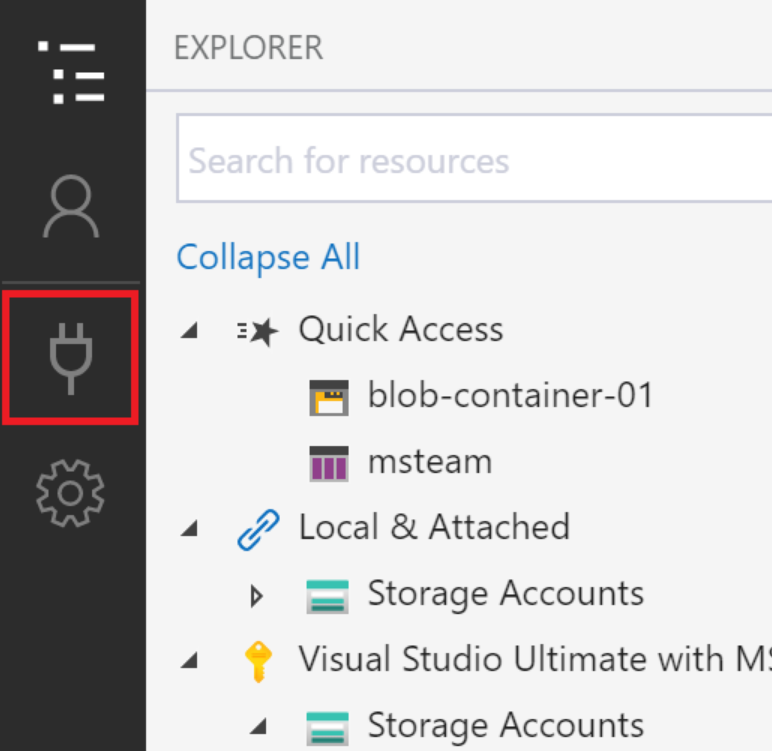
Connect to your Azure Storage account.
To connect to an individual resource, select the Connect button in the left-hand toolbar. Then follow the instructions for the resource type you want to connect to.
In the Select Resource panel of the Connect to Azure Storage dialog, select the resource you want to connect to.
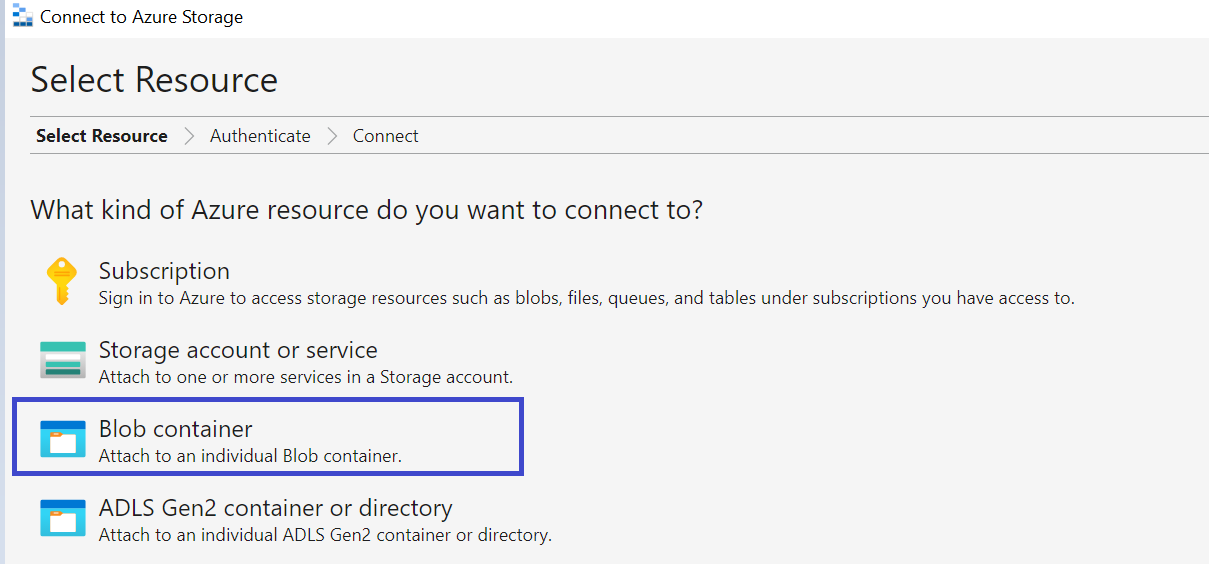
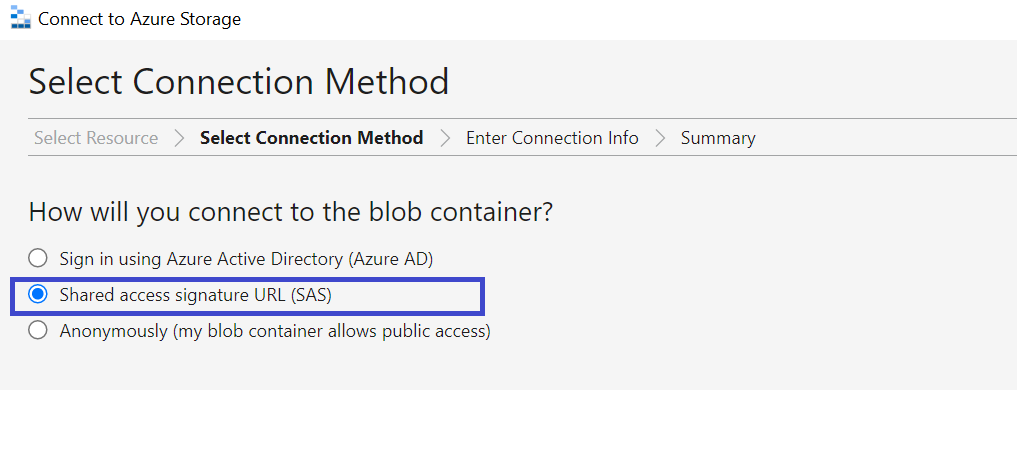
Select the connection type: Shared access signature URI (SAS).
Select Shared access signature (SAS) and Click on Next.
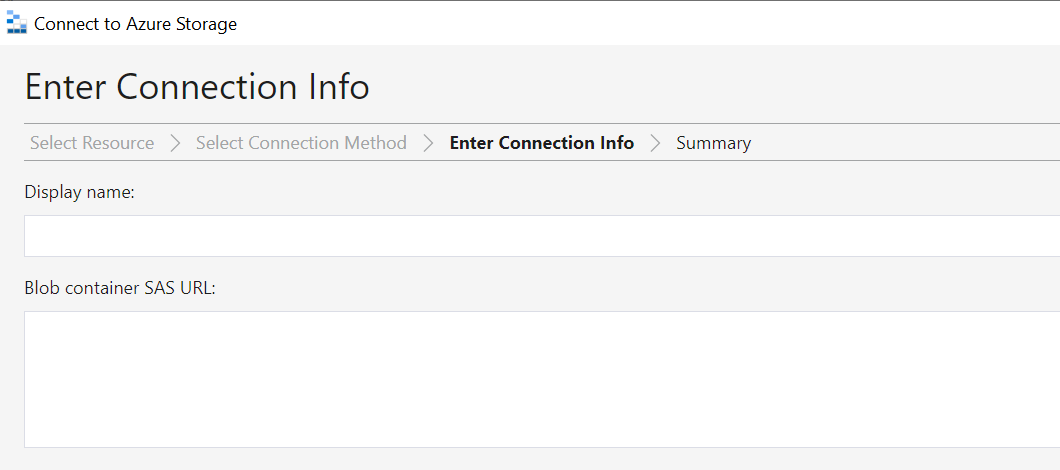
Provide a meaningful name and Service URL for the connection.
Enter a display name for your connection and the SAS URI for the resource. Select Next.
Review and verify the connection details
Review your connection information in the Summary panel. If the connection information is correct, select Connect.
When you've added a connection, it appears in the resource tree as a new node. You'll find the connection node in this branch: Local & attached > Storage Accounts > Attached Container > Service.
Create an account SAS - Azure Storage | Microsoft Learn
Creating a blob container
Manage Azure Blob Storage resources with Storage Explorer | Microsoft Learn
Upload a document to Azure blob storage
Click on the Upload button shown in the right-side pane of the newly created blob container.
On selecting the blob to be used for uploading the files from the left menu, main pane will display the contents if any.
From the Top Menu, we can select the Upload option as shown in the figure below:
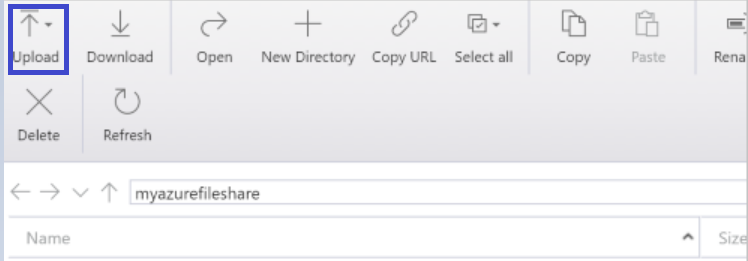
You will get 2 options; one is the upload folder and another one is upload files. Choose your option according to your data to be uploaded.
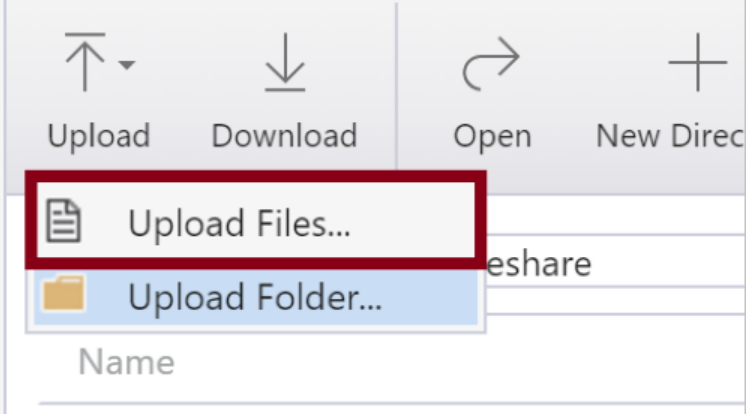
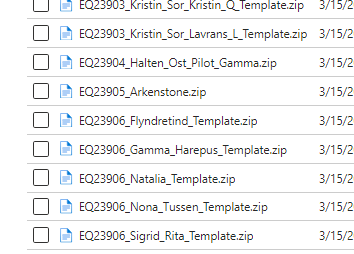
Note: Please upload the survey files directly in the dss directory without creating any subfolder.
Some Important References and Links
Azure Storage Explorer
- Azure Storage Explorer - documentation
- Azure Storage Explorer - download
- Azure Storage Explorer - connect to Blob container
AzCopy
Note: For any queries connect to emnbdatasupport@equinor.com